Product Updates: Shared Steps and Usage Breakdown
This month, we're introducing a new way to manage and maintain your test cases, along with improvements that give you more visibility into how you're using your Bespoken account.
Here's what's new 👇
Shared Steps: Create Once, Reuse Across Tests
Many test cases share the same conversation steps. For example, several tests might start with the same welcome message and ask the customer why they're calling.
Imagine you're testing a contact center's virtual agent:
- Expected: Thank you for calling. Welcome to our customer service center. How can I help you today?
- Input: I need help with my account.
- Expected: Of course. I can help you with your account. Could you tell me a little more about what you need?
- Input: I want to check my account balance.
Now imagine this same opening sequence appears in dozens of test cases, even when the conversations go in different directions afterward.
With Shared Steps, you can create a sequence of steps once and reuse it across multiple test cases. This gives you a centralized way to manage common conversation flows, so when something changes, you only need to update it in one place. Those changes automatically apply to every test case using that Shared Step.
Create Shared Steps in seconds
There are two ways to create a Shared Step.
Create one from scratch
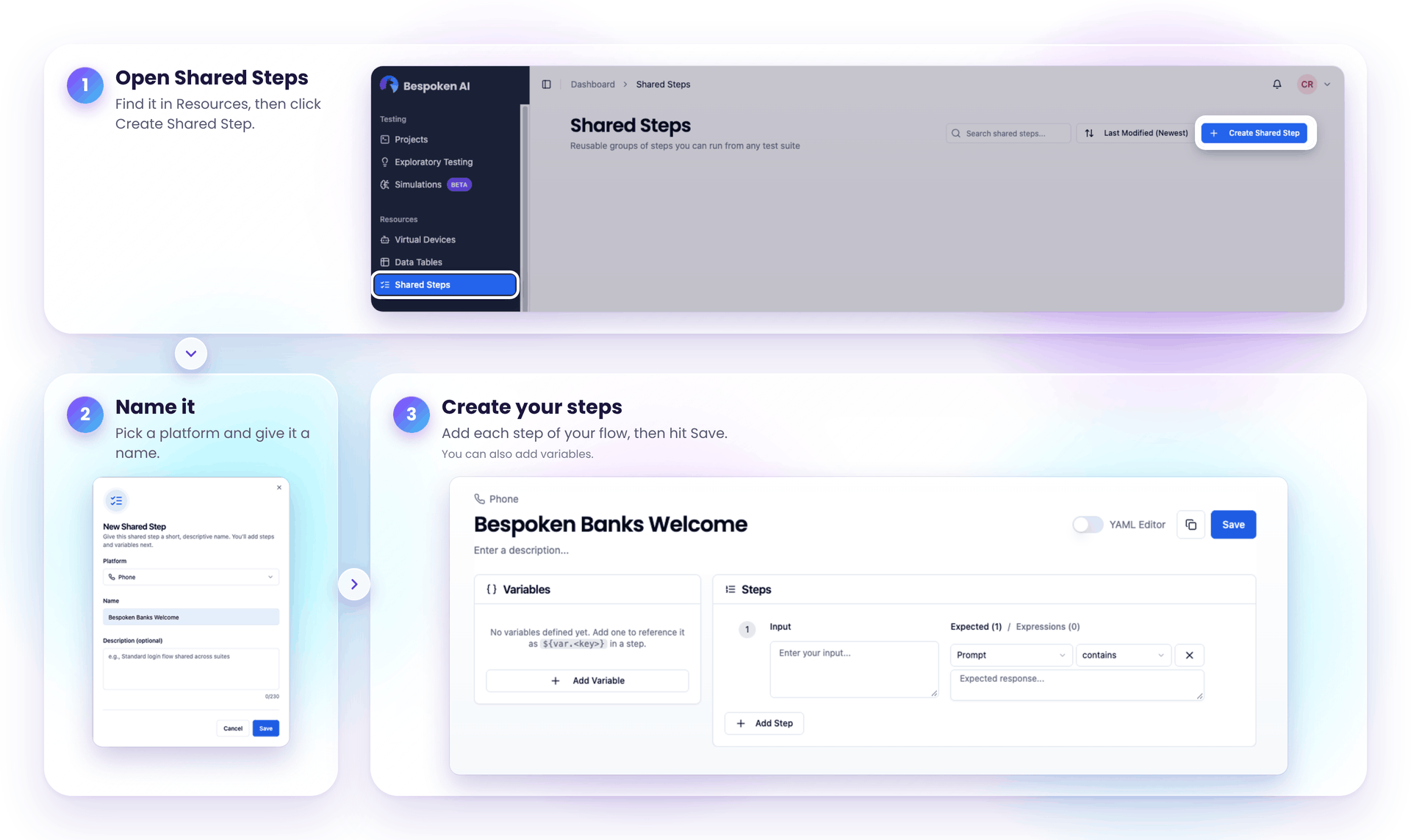
Go to Shared Steps in the left-hand navigation menu and select New Shared Step.
Choose your platform (Phone, Google, Alexa, SMS, and more), give your Shared Step a name, and optionally add a description.
You'll then have an editor where you can build your conversation flow by adding the inputs and expected responses you need.
Turn existing test steps into a Shared Step
There's an even faster way.
Open an existing test case and look for the new Turn into Shared Step button next to the test steps.
Select the adjacent steps you want to group together, click to create your Shared Step, and give it a name and optional description.
Bespoken will also identify other test cases containing those same steps and let you review them. You can then choose to replace those steps with the new Shared Step.
Update once, keep every test in sync
Once a Shared Step is used across multiple test cases, maintaining them becomes even easier.
You can edit a Shared Step directly from a test case by opening it, or navigate to Shared Steps in the left-hand sidebar to see the full list and select the one you want to modify.
Make the necessary changes, and they'll automatically apply to every test case using that Shared Step.
Shared Steps are easy to identify in the test editor thanks to their light blue background.
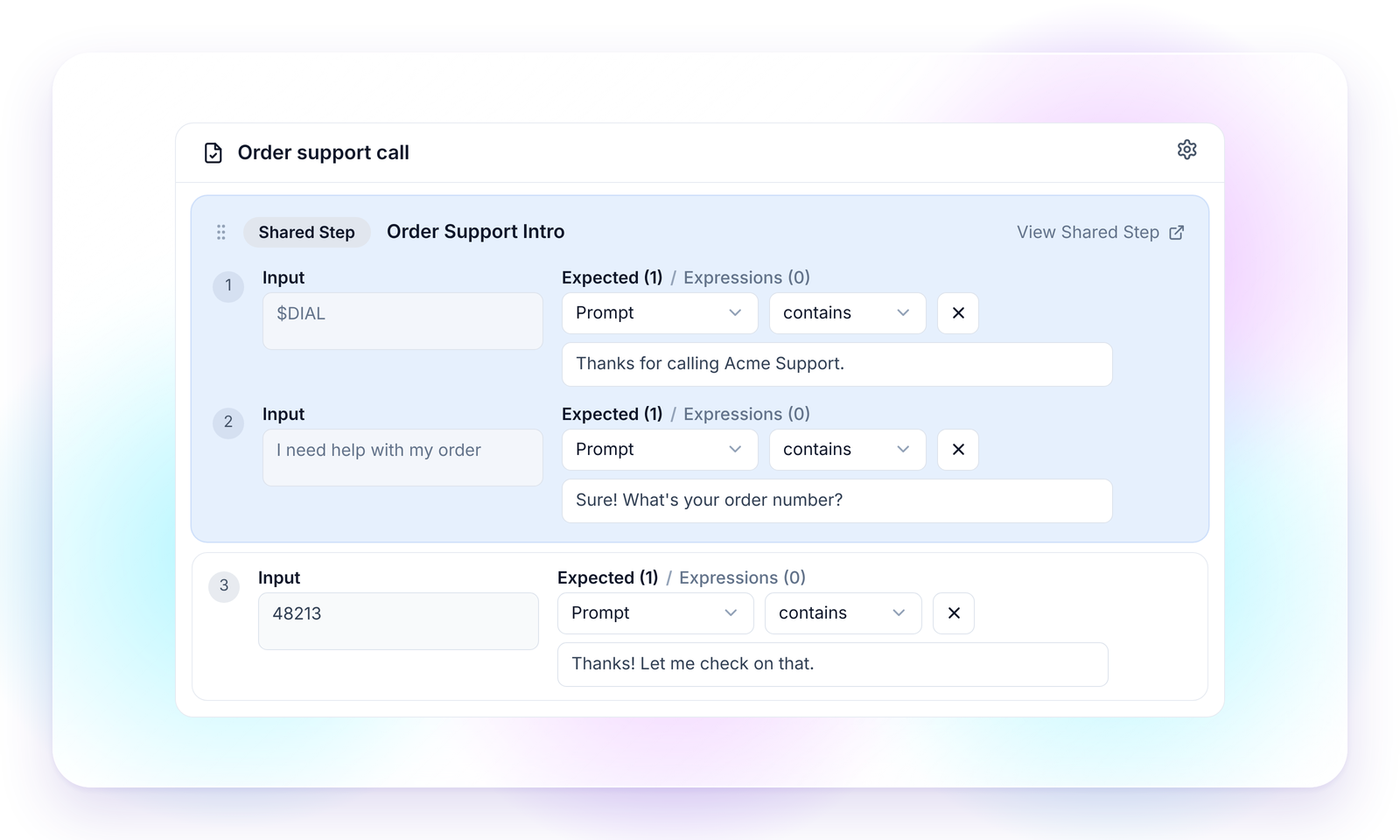
Your test cases continue to work as usual, but now you have one place to manage the conversation steps they share.
Make Shared Steps more flexible with variables
Shared Steps also support variables, allowing you to reuse the same conversation flow with different values in different test cases.
For example, instead of hardcoding an answer like Lima to the question "What city are you traveling from?", you can use a variable such as $[var.departure_city].
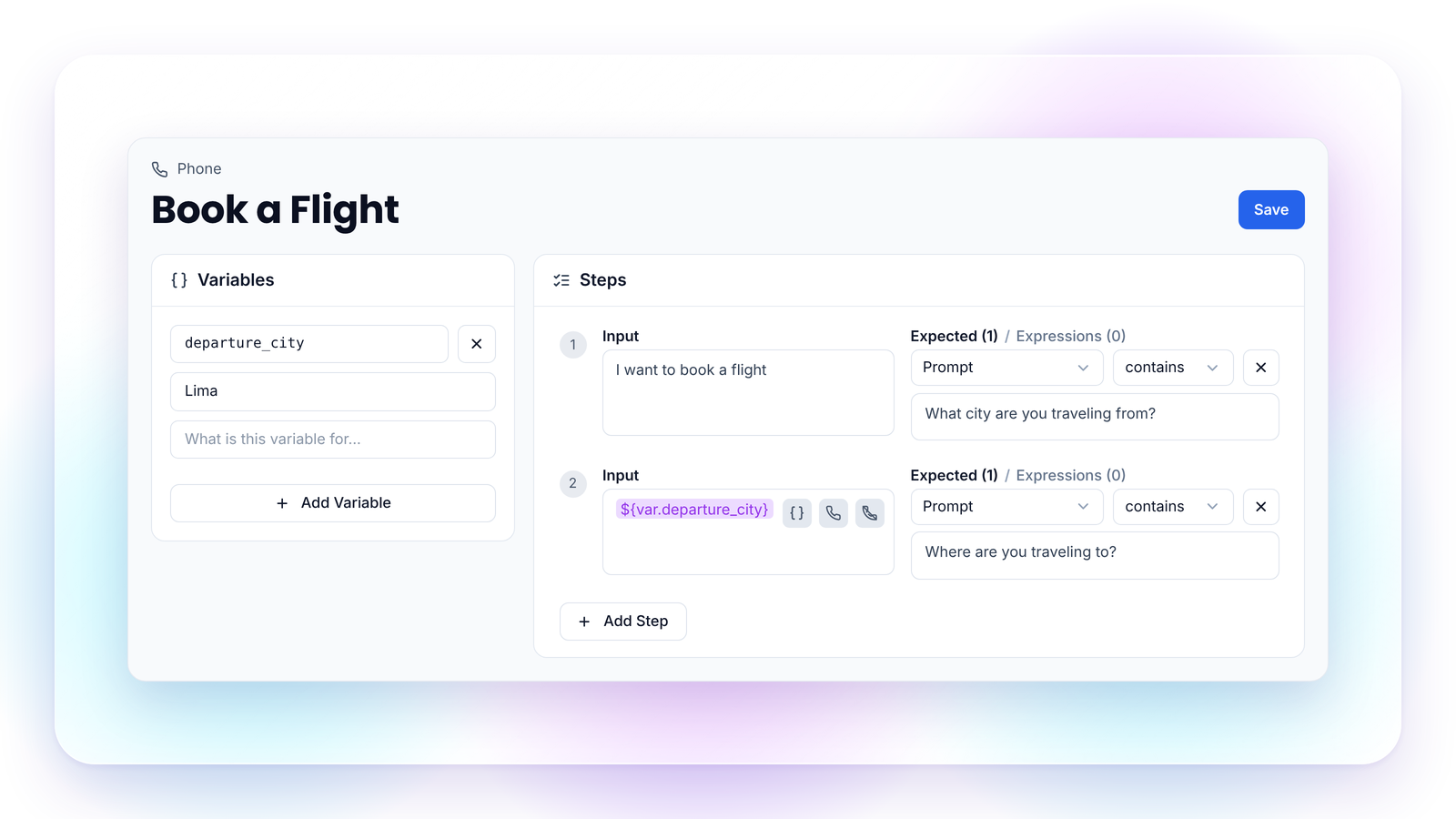
You can define the available values (for example, Lima or Santiago) and then assign the appropriate value in each test case.
This means you can keep the conversation flow consistent while testing different scenarios.
For more advanced use cases, you can also populate variables from a data table.
Keep track of where your Shared Steps are used
From the Shared Steps list, you can see which test cases are using each Shared Step.
This makes it easier to understand where a shared flow is being used and manage changes across your test suite.
Usage Breakdown: See Where Your Usage Goes
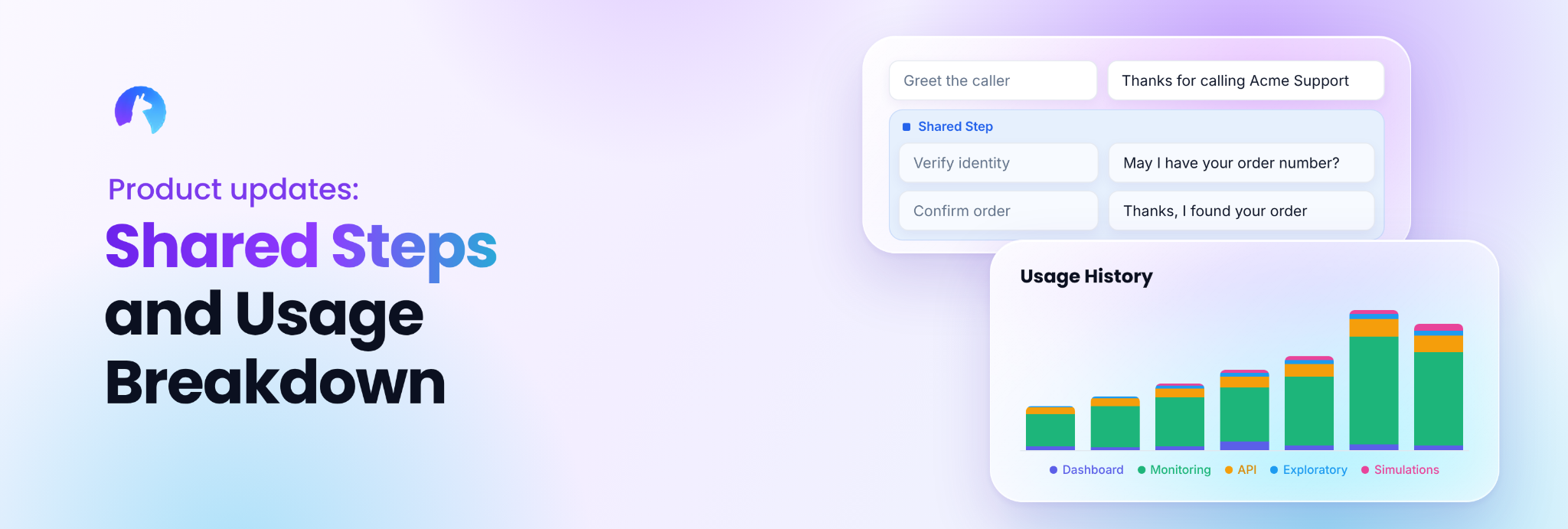
We've improved the Usage section in your dashboard to give you a clearer picture of how your utterances are being consumed.
Previously, the usage chart displayed your total utterance consumption using a single color, making it difficult to see which features accounted for that usage.
Now, the chart includes a breakdown by feature:
- Monitoring
- Dashboard
- API
- Exploratory
- Simulations
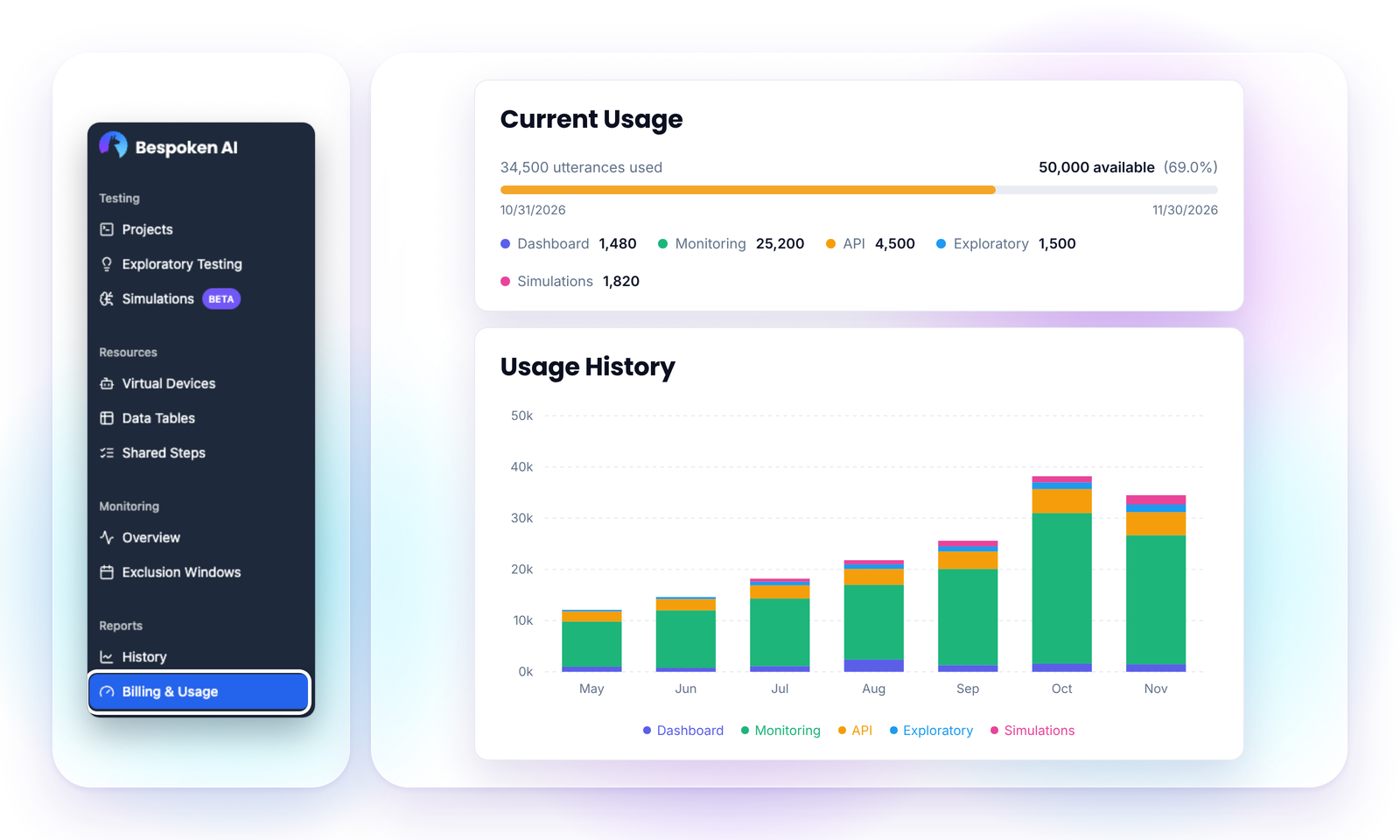
This makes it easier to understand how your team is consuming utterances and identify where you might need to make adjustments.
You can find this update under Billing & Usage in the left-hand navigation menu.
That's what's new this November!
TL;DR:
- Shared Steps: Create reusable conversation flows and use them across multiple test cases.
- Centralized updates: Edit a Shared Step once and automatically apply changes to every test case using it.
- Variables: Use different values across test cases while keeping the same shared conversation flow.
- Usage Breakdown: See how your utterances are consumed across Monitoring, Dashboard, API, Exploratory, and Simulations.
Ready to simplify your test maintenance? Explore Shared Steps in your Bespoken dashboard and see how much easier it is to manage reusable conversation flows.